

Product
Solutions

By field

Games VFX Animation Film and TV Post production Ads and music videos XR / VR

By role

Programming Game and level design Script 2D art 3D and characters Animation VFX and compositing Sound and music Directing and production
Editions Platforms Community Sign in My page
Theme
Motion
Download for Windows

Solutions/By field

VFX

Solve the shot together.

In VFX, problems rarely fit into words. Open your window, let the team see, and keep the decision in one place: who handed in what, which version was approved, what still needs changes.

Share your window, hand over the mouse, solve the shot together.

The shot comes to the table.

Versions, notes and the decision in one window. Scroll and it falls into place.

The team watches live and, with your permission, takes the mouse and keyboard.

1Screen sharing

Only that window.

Not your whole screen, just the program you chose. With your permission, someone on the team takes the mouse and keyboard; you set the time and can take it back whenever you like.

There's no audio during a share yet; you talk through the room's text chat.
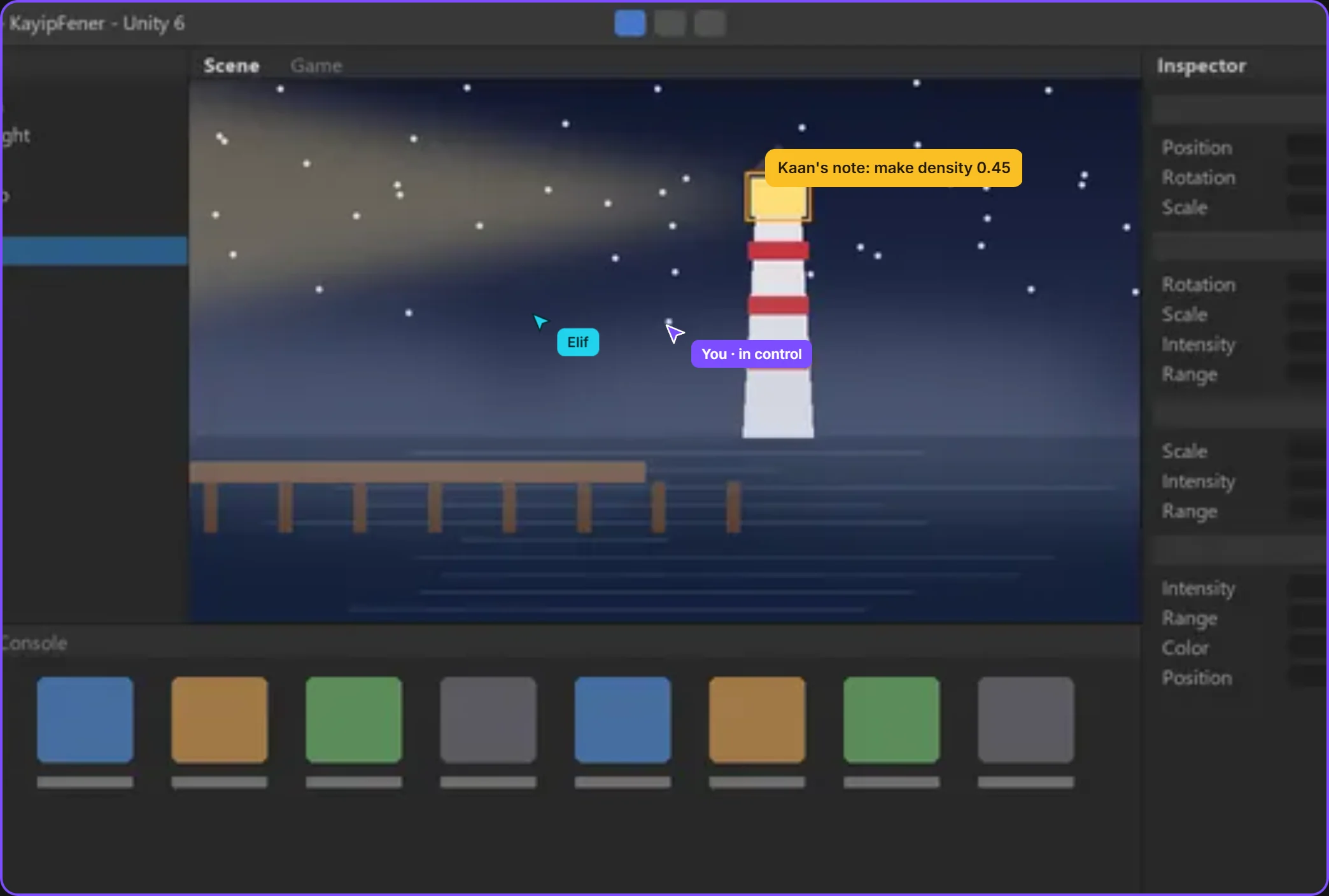
Screen sharing: the shared window and the room's chatonly this windowthe mouse moves with permission
2Files

Versions in one place.

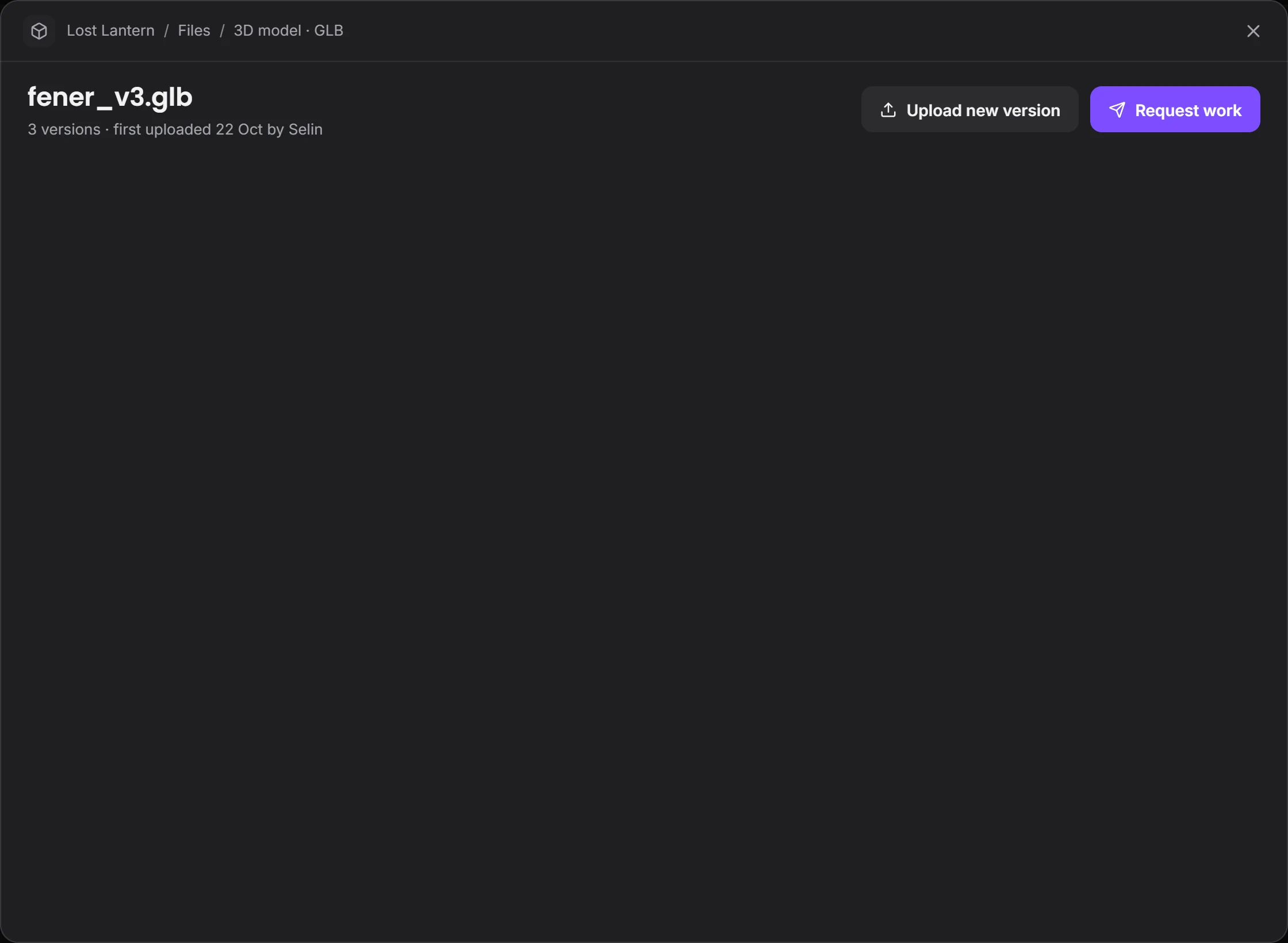
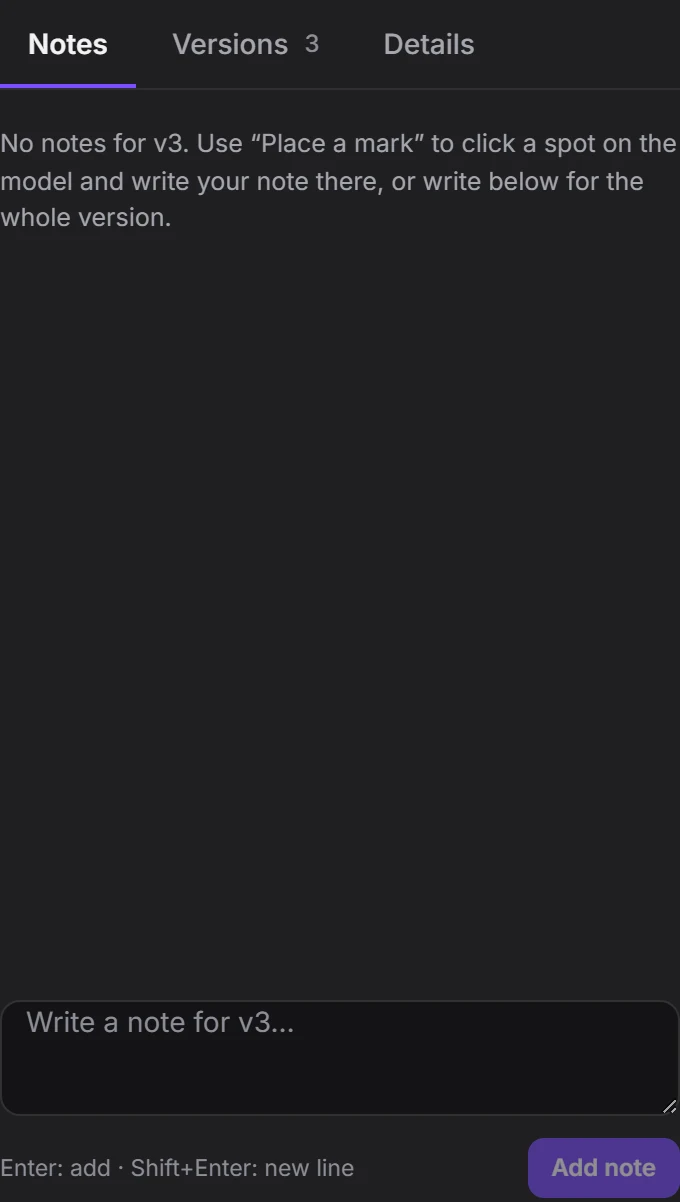
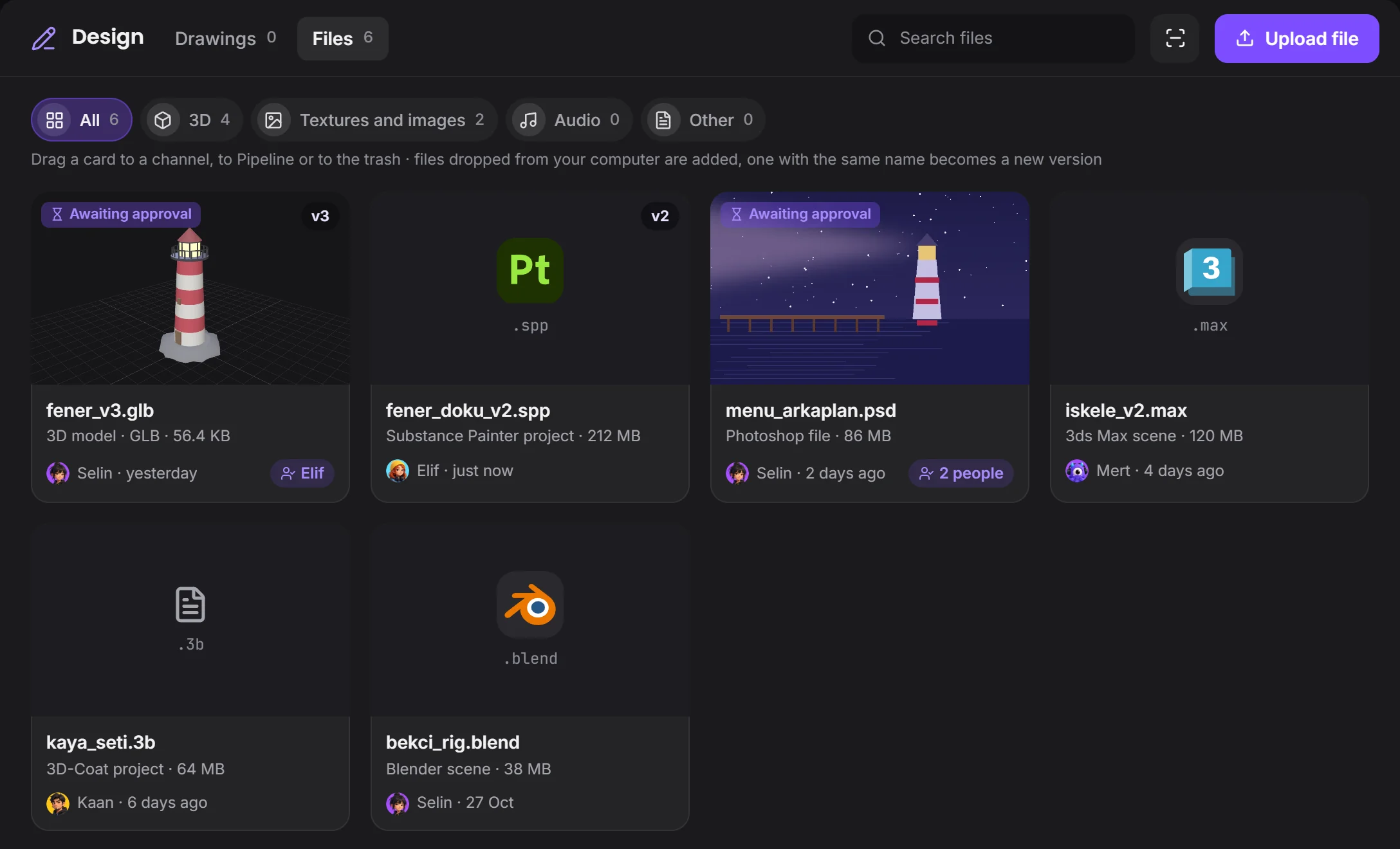
Every file is kept version by version: upload the same name and it becomes a new version, and the old one stays. A type filter separates 3D, textures, audio and the rest.

Press Request work and a task opens; the file handed in is tied to that task.

Files: project files with their versions and typesits version is hereits program's logo
3Compare

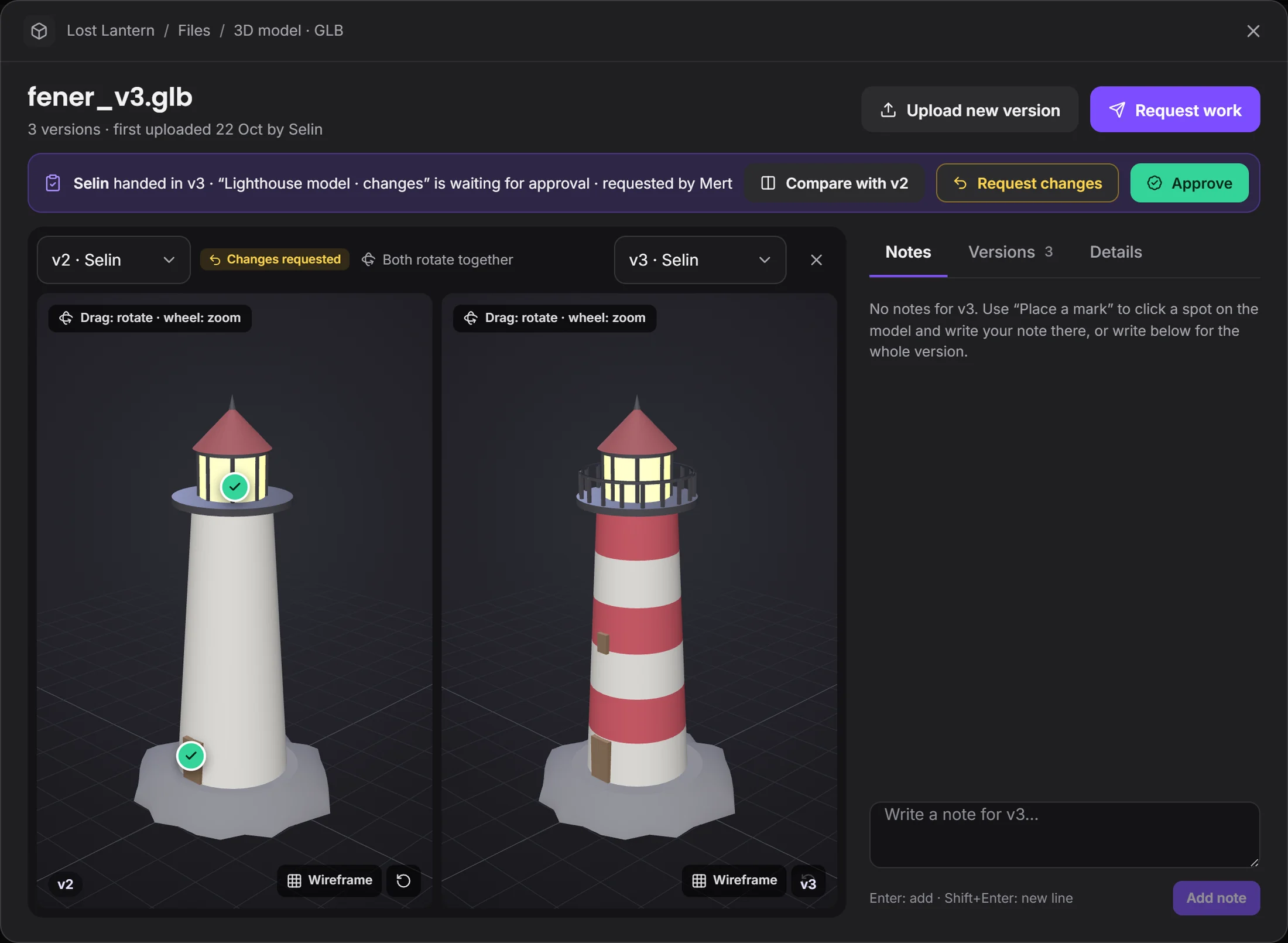
See two versions side by side.

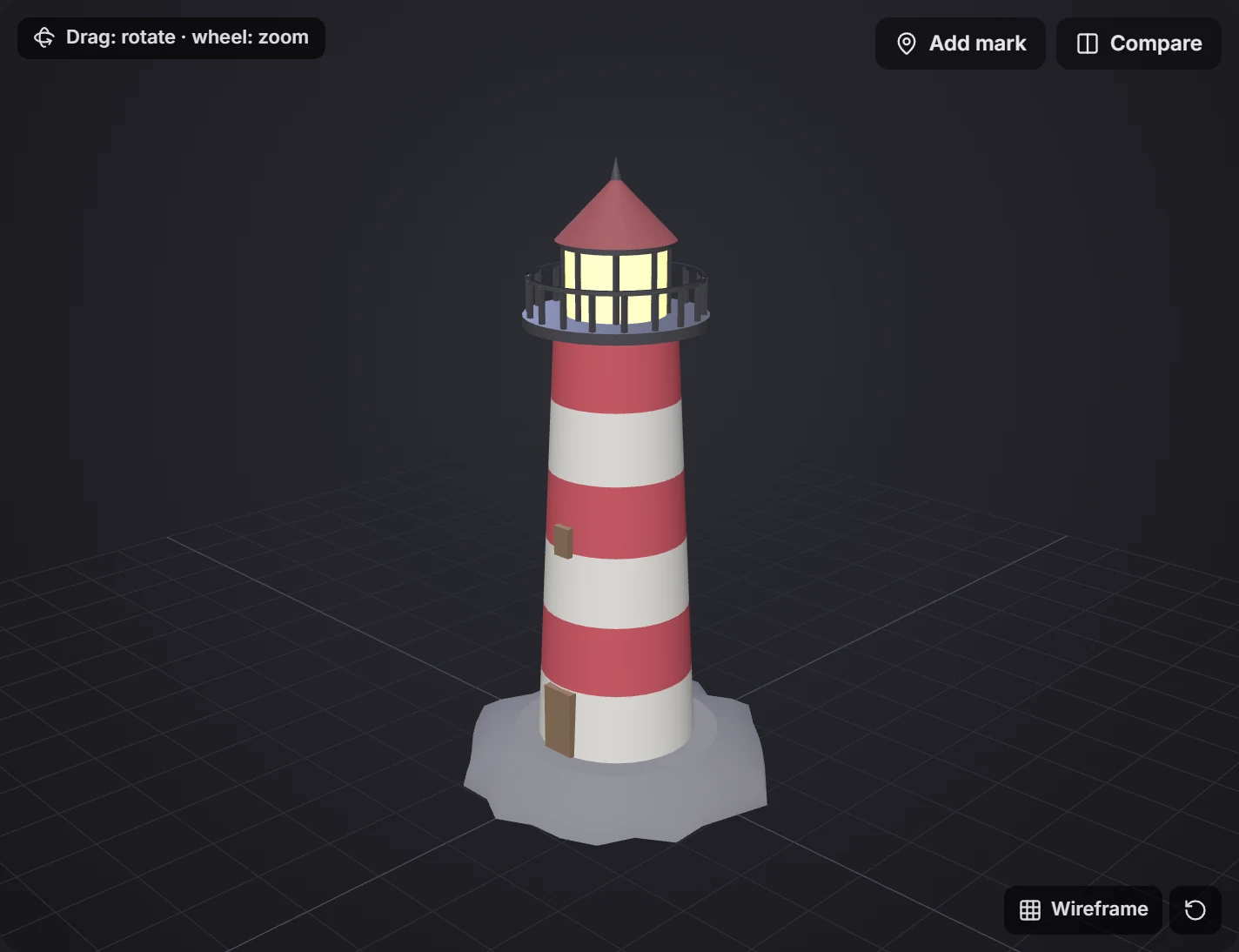
Open two versions on one screen: the models turn together and no difference slips by. The decision is Approve or Request changes, and whoever handed in the file hears about it.

Two versions side by sideboth turn togetherthe decision is made here
4Pipeline

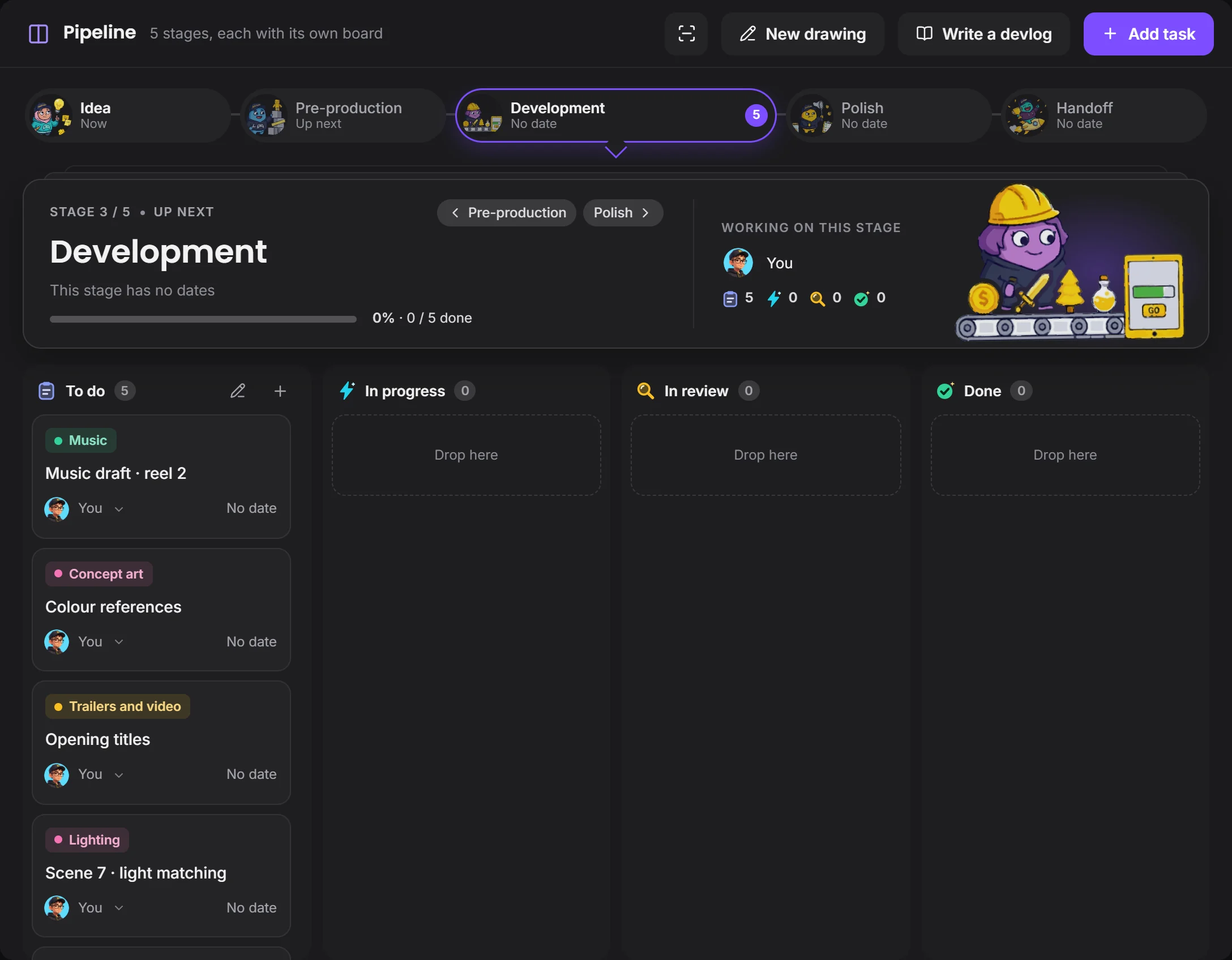
Order the stages to fit the work.

Idea, Pre-production, Development, Polish, Handoff: pick the stages that fit your work and put them in order. Each stage gets its own board, and you see who is waiting on what.

Pipeline on a short film projectyou set the stagesevery task has its field

How a shot moves forward

Every file handed in stays in one place with its comments and its decision.

TaskThe shot is given to someone
WorkThe program shows in Studio
HandoffThe file becomes a new version
CommentA mark goes on it
ApprovalThe task closes

Your programs stay the same.

Devchaos doesn't replace your program, it stands beside it. Whichever one is open shows on your Studio card; there are 50 programs on the list, and you can add yours if it's missing.

Houdini
Nuke
After Effects
Blender
EmberGen
Maya
DaVinci Resolve
Substance Painter

Questions

Is there voice chat?

Not yet, it's coming soon. Voice rooms and camera are on the way. For now you use the room's text chat during a screen share.

Where do our files live?

You choose from three places: the Devchaos server (2 GB per project), a computer left on at the office, or your own cloud storage (such as Cloudflare R2, Amazon S3 or Backblaze).

Can the team see what I'm looking at?

You decide. In What your team sees you choose who sees it, and whether that's the program, the file name, the time, screenshots and how often; you can hide a program and set limits by working hours or by project.

Can we set our own pipeline stages?

Yes. You pick ready-made stage names such as Idea, Pre-production, Development, Polish and Handoff, put them in order, and give each an icon and a date. You can save the set as a template and use it in another project.

Next solutionAnimation →

ANIMATION

From scene to handoff, at one table.